How to Manage Remote Servers from Claude Code
Step-by-step guide to setting up Slipstream with Claude Code for remote server management. Install the agent, create an API token, configure the MCP server, and start running commands on your devices.
You’re in Claude Code working on a project. Something’s not right on your staging server.
Normally you’d open a new terminal, SSH in, poke around, copy output back, and repeat.
It works, but it breaks your flow every time.
Every context switch slows you down. When you’re debugging issues, that delay adds up quickly — especially when you’re jumping between terminals and your AI assistant.
This guide walks you through setting up Slipstream with Claude Code so you can interact with your infrastructure without leaving your editor. The setup takes about 5 minutes.
What You’ll Get
By the end of this setup, you’ll be able to:
- Run commands on your servers directly from Claude Code
- Inspect logs, system metrics, and services without leaving your editor
- Let Claude reason about real-time system data instead of static output
What You’ll Need
- A Slipstream account (free tier works)
- A Linux server, Raspberry Pi, or any device you want to manage remotely
- Claude Code installed
Step 1: Install the Slipstream Agent
The agent is a lightweight service that runs on the device you want to manage. It connects to the Slipstream cloud relay and waits for commands.
Linux / macOS (one-liner):
curl -fsSL https://slipstream-api.keyq.io/install.sh | bash -s -- --token YOUR_ENROLLMENT_TOKENTo get an enrollment token, go to your Slipstream dashboard → Enrollment and create one.
Windows:
Download the desktop app installer and run through the setup wizard.
After installation, your device should appear as “Online” in the dashboard.
Step 2: Create a Personal API Token
The MCP server needs a token to authenticate with the Slipstream API.
- Go to Settings → API Tokens
- Name it “Claude Code”
- Click Create Token
- Copy the
pat_...value (shown once)
Step 3: Grant Command Execution Permission
Remote command execution is opt-in for security. You need to explicitly enable it:
- Go to Team
- Click your user → Permissions
- Enable Remote Command Execution (
exec:command)
Step 4: Configure the MCP Server
Create a .mcp.json file in your project root:
{
  "mcpServers": {
    "slipstream": {
      "command": "npx",
      "args": ["-y", "@keyqinc/slipstream-mcp"],
      "env": {
        "SLIPSTREAM_TOKEN": "pat_your_token_here"
      }
    }
  }
}
Restart Claude Code. You should see the Slipstream tools available.
Step 5: Start Using It
Now you can interact with your infrastructure directly through Claude — without leaving your editor.
Here are some real examples:
Check what’s running:
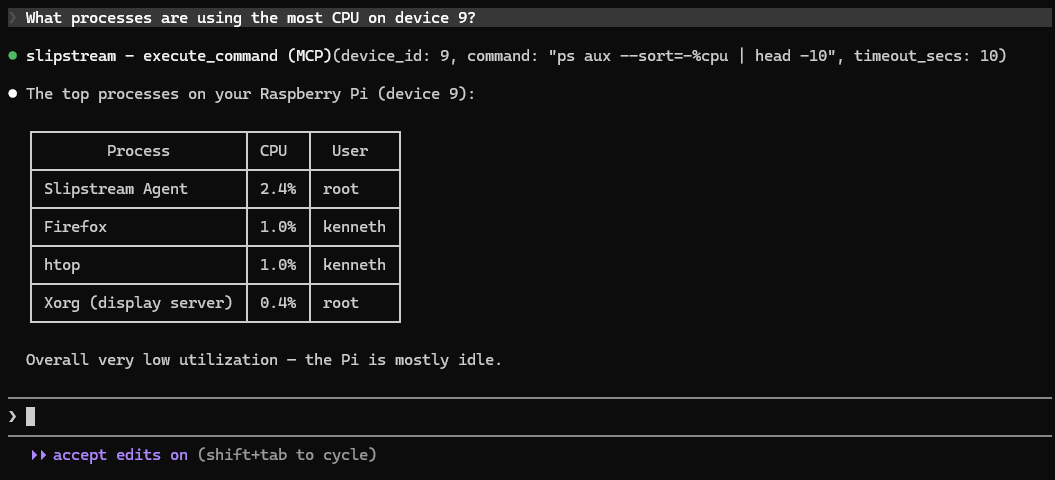
> What processes are using the most CPU on device 9?Claude generates and runs a command like ps aux --sort=-%cpu | head -10 and shows you the results.
Debug a deployment:
> Check if the API is responding on device 15Claude generates and runs curl -s localhost:3000/health and interprets the response.
Inspect logs:
> Show me the last 20 lines of the nginx error log on device 15Claude runs tail -20 /var/log/nginx/error.log and highlights the relevant errors.
Check disk space:
> What's the disk usage on my Pi?Claude runs df -h and summarizes it in plain English.
Complex multi-step debugging:
> The API on device 15 is slow. Can you check the database connection,
> memory usage, and recent error logs?
Claude runs multiple commands in sequence, correlates the results, and gives you a diagnosis.
Why This Changes Your Workflow
Instead of manually gathering data and feeding it into Claude, the AI can access your systems directly.
That means faster debugging, fewer mistakes, and less time spent switching between tools. When Claude can check a log, verify a configuration, and test a connection — all in one conversation — you stay in flow instead of bouncing between windows.
How It Works Under the Hood
Here’s what happens behind the scenes when you ask Claude to run a command:
- Claude calls the
execute_commandMCP tool - The MCP server sends the command to the Slipstream API
- The API routes it through the relay to your device
- The agent executes the command with a 30-second timeout
- Results are posted back via HTTP
- The MCP server polls for the result and returns it to Claude
Simple commands typically complete in tens of milliseconds.
Tips and Best Practices
Use device IDs or names. Run list_devices first to see what’s available. Claude will remember the IDs for follow-up commands.
Background long-running commands. The 30-second timeout means apt upgrade won’t work directly. Instead:
> Run "nohup apt upgrade -y > /tmp/upgrade.log 2>&1 &" on device 9,
> then check the log in 2 minutes
Chain commands with &&. Everything runs in a shell, so pipes, redirects, and conditionals work:
> Check if docker is running on device 15, and if so, show the running containersClaude will generate something like systemctl is-active docker && docker ps and interpret the results.
Be specific about which device. If you have multiple devices, always specify which one. “Check the logs” is ambiguous. “Check the nginx logs on device 15” is clear.
Security Notes
Every command you run through Claude is:
- Authenticated with your personal API token
- Permission-checked (requires
exec:command) - Audit-logged with your user ID, the command, and the result
- Rate-limited to 60 commands per minute per device
The agent runs commands as the detected login user (not root), and Slipstream strips its own credentials from the command environment. This ensures commands are traceable, controlled, and limited in scope.
You can review all executed commands in the audit log.
What’s Next
Once you’re comfortable with the basics, explore:
- Fleet deployment — install agents across your infrastructure with enrollment tokens
- Remote desktop — Slipstream also does full remote desktop with H.264 video, not just terminal commands
- Session recording — record remote desktop sessions for audit and playback
The MCP server is open source at github.com/keyqcloud/slipstream-mcp. PRs welcome.
Try It
If you want to stay in flow while debugging and let Claude work directly with your systems, this setup takes about 5 minutes.
Get started free and try it on one of your devices.